
Indledning
This manual provides instructions for setting up, operating, and maintaining your Mercury MW3030R Dual Band Wireless Router. Please read this manual carefully before use to ensure proper installation and optimal performance.
Sikkerhedsoplysninger
- Udsæt ikke enheden for vand eller for høj luftfugtighed.
- Forsøg ikke selv at adskille eller reparere enheden.
- Brug kun den strømadapter, der følger med enheden.
- Sørg for tilstrækkelig ventilation omkring routeren for at forhindre overophedning.
Pakkens indhold
Bekræft, at din pakke indeholder følgende varer:
- Mercury MW3030R Wireless Router
- Strømadapter
- Ethernet kabel
- Hurtig installationsvejledning (denne manual fungerer som en detaljeret vejledning)
Produkt overview
Gør dig bekendt med routerens komponenter og indikatorer.
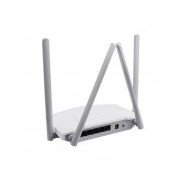
Figur 1: Bag view of the Mercury MW3030R router. This image displays the four external antennas, the WAN port (typically blue), multiple LAN ports (typically yellow), and the power input jack. The reset button and WPS button are also usually located on the rear panel.
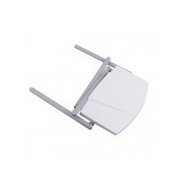
Figur 2: Top-down view of the Mercury MW3030R router with its antennas folded. This perspective highlights the router's sleek, white casing and its overall compact form factor, suitable for various placements.
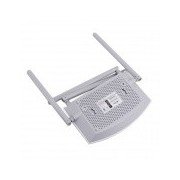
Figur 3: Bund view of the Mercury MW3030R router. This image shows the ventilation holes designed for heat dissipation and the product label, which typically contains important information such as the default Wi-Fi name (SSID), password, and web management address.
LED-indikatorer:
- Power LED: Angiver routerens strømstatus.
- Internet LED: Indicates the status of the internet connection.
- WLAN LED: Indikerer trådløs aktivitet.
- LAN LED'er: Indicate connection status for each LAN port.
Opsætning
1. Hardwareforbindelse
- Tænd: Connect the power adapter to the router's power port and plug it into a wall outlet. Wait for the Power LED to become stable.
- Forbind til internettet (WAN): Connect one end of an Ethernet cable to your modem's LAN port and the other end to the router's WAN port (usually distinctively colored, e.g., blue).
- Tilslut enheder (LAN): For wired connections, connect your computer or other devices to the router's LAN ports (usually yellow) using Ethernet cables.
- Antenner: Adjust the four antennas for optimal signal coverage.
2. Indledende konfiguration (Web grænseflade)
- Tilslut til router: Connect your computer to the router either via an Ethernet cable to a LAN port or wirelessly using the default Wi-Fi SSID and password printed on the router's label (refer to Figure 3).
- Adgang Web Browser: Åbn a web browser (e.g., Chrome, Firefox) and type the default access address (e.g., http://192.168.1.1 or http://tplinkwifi.net) i adresselinjen og tryk på Enter.
- Login: Indtast standardbrugernavn og adgangskode (normalt admin for begge, eller som angivet på routerens etiket).
- Kør hurtig opsætning: Follow the on-screen instructions of the Quick Setup Wizard to configure your internet connection type (e.g., PPPoE, Dynamic IP, Static IP) and wireless settings (SSID, password).
- Skift standardadgangskode: Af sikkerhedsmæssige årsager anbefales det kraftigt at ændre standardadgangskoden til routeren. web ledelsesgrænseflade.
Betjeningsvejledning
Opretter forbindelse til Wi-Fi
- Søg efter tilgængelige Wi-Fi-netværk på din trådløse enhed (smartphone, bærbar computer).
- Select your router's Wi-Fi network name (SSID) that you configured during setup.
- Enter the Wi-Fi password you set.
- Din enhed skulle nu have forbindelse til internettet.
Dual Band Operation
The MW3030R supports both 2.4GHz and 5.0GHz wireless bands. The 2.4GHz band offers wider coverage, while the 5.0GHz band provides faster speeds with less interference over shorter distances. You can connect your devices to either band based on your needs.
Gæstenetværk
Få adgang til routerens web interface to enable and configure a separate guest network. This allows guests to access the internet without accessing your main network resources.
Opretholdelse
- Firmwareopdateringer: Kontroller regelmæssigt producentens webwebsted for firmwareopdateringer. Opdatering af firmware kan forbedre ydeevnen, tilføje nye funktioner og rette sikkerhedssårbarheder.
- Genstart af routeren: Hvis du oplever netværksproblemer, kan du prøve at genstarte routeren ved at tage strømadapteren ud, vente 10 sekunder og derefter sætte den i igen.
- Rensning: Hold routeren ren og fri for støv. Brug en blød, tør klud. Brug ikke flydende rengøringsmidler.
- Placering: Placer routeren et centralt sted, væk fra forhindringer og enheder, der kan forårsage interferens (f.eks. mikrobølgeovne, trådløse telefoner).
Fejlfinding
Ingen internetadgang
- Check if the Internet LED on the router is lit or blinking correctly.
- Ensure the Ethernet cable from your modem is securely connected to the router's WAN port.
- Genstart dit modem og din router.
- Bekræft dine internetforbindelsesindstillinger i routerens web interface.
Slow Wireless Speed
- Ensure your device is connected to the 5.0GHz band if it supports it, for faster speeds.
- Move closer to the router or adjust antenna positions.
- Tjek for interferens fra andre elektroniske enheder.
- Reduce the number of devices connected to the network or bandwidth-intensive activities.
Kan ikke få adgang til routerens Web Interface
- Sørg for, at din enhed er forbundet til routeren (kablet eller trådløst).
- Verify the IP address you are typing in the browser is correct (e.g., http://192.168.1.1).
- Prøv at rydde din browsers cache eller brug en anden browser.
- If you forgot the login password, you may need to perform a factory reset (Warning: This will erase all your settings).
Specifikationer
| Feature | Beskrivelse |
|---|---|
| Model | MW3030R |
| Trådløse standarder | IEEE 802.11ac/n/g/b/a |
| Frekvens | 2.4 GHz og 5.0 GHz (dobbeltbånd) |
| Trådløs hastighed | Up to 600Mbps (combined) |
| Antenner | 4 eksterne antenner |
| Grænseflader | 1x WAN Port, Multiple LAN Ports (typically 3 or 4) |
| Strømforsyning | External Power Adapter (provided) |
Garanti og support
The Mercury MW3030R router comes with a standard manufacturer's warranty. For detailed warranty information, technical support, or service inquiries, please refer to the official Mercury webwebstedet eller kontakt deres kundesupport. Gem din købskvittering til garantikrav.