
1. Introduktion
This manual provides detailed instructions for the installation, operation, and maintenance of your Azurewave AW-NB041 WiFi and Bluetooth PCIe Mini-Card. This highly integrated wireless local area network (WLAN) solution allows users to enjoy digital content through the latest wireless technology without the need for extra cables. It combines Bluetooth 3.0 HS class II and provides a complete 2.4GHz Bluetooth system, fully compliant with Bluetooth 3.0 HS and v2.1, supporting EDR of 2Mbps and 3Mbps for data and audio communications.
The AW-NB041H module is designed for high performance, cost-effectiveness, and low power consumption, fitting easily into a PCI Express and USB Combo Half Mini Card slot.
2. Produktfunktioner
- Compliant with IEEE 802.11n standard for reliable wireless connectivity.
- Supports 1 (Transmit) x 1 (Receive) technology for WiFi.
- Antenna configuration: Main antenna for WiFi 1T x 1R and Bluetooth TX/RX; Auxiliary antenna for Bluetooth TX/RX and WiFi TX/RX.
- High-speed wireless connection up to 150Mbps.
- Lavt strømforbrug og højtydende design.
- Forbedrede trådløse sikkerhedsfunktioner.
- Fully qualified Bluetooth v3.0+HS.
- Fuld hastighedsdrift med Piconet- og Scatternet-understøttelse.
- Electrical compliance to USB1.1 & 2.0 through a proprietary 10-Pin Connector.
- Utilizes Direct Sequence Spread Spectrum (DSSS), Orthogonal Frequency Division Multiplexing (OFDM), BPSK, QPSK, CCK, and QAM baseband modulation technologies.
- Integrated Ralink RT3090 with CSR BC04 solution.
3. Sikkerhedsoplysninger
- Vigtig: The Vcc (supply voltage) for this module is 3.3V. Applying 5V is not allowed and will damage the device.
- Always handle electronic components with care to avoid electrostatic discharge (ESD). Use an anti-static wrist strap if available.
- Sørg for, at din computer er slukket og taget stikket ud af stikkontakten inden installation.
- Refer to your computer's manufacturer manual for specific instructions on opening the chassis and accessing internal components.
- Hold modulet væk fra fugt og ekstreme temperaturer.
4. Pakkens indhold
Pakken skal indeholde følgende vare:
- 1 x Azurewave AW-NB041 WiFi and Bluetooth PCIe Mini-Card
Note: Drivers and installation software are typically provided by your operating system or can be downloaded from the manufacturer's webwebsted.
5. Opsætning og installation
Follow these steps to install the AW-NB041 PCIe Mini-Card into your compatible device:
- Forbered dit system: Power off your computer completely and disconnect the power cord. If it's a laptop, remove the battery.
- Åbent chassis: Carefully open your computer's chassis or access panel to expose the internal components. Refer to your computer's manual for specific instructions.
- Locate PCIe Mini-Card Slot: Identify an available half-size PCIe Mini-Card slot on your motherboard.
- Installer kortet: Gently insert the AW-NB041 card into the PCIe Mini-Card slot at an angle. Once seated, push down the card until it clicks into place or secure it with the retaining screw (if applicable).
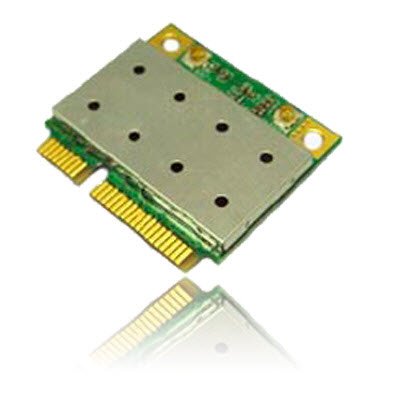
Image of the Azurewave AW-NB041 PCIe Mini-Card, showing its compact form factor and connectors.
- Tilslut antenner: If your system has internal antennas, carefully connect them to the appropriate connectors on the AW-NB041 card (Main for WiFi/BT, Aux for BT/WiFi).
- Luk chassis: Reassemble your computer's chassis and reconnect the power cord/battery.
- Installer drivere: Power on your computer. Your operating system may automatically detect and install the necessary drivers. If not, download the latest drivers for the Ralink RT3090 (for WiFi) and CSR BC04 (for Bluetooth) chipsets from the Azurewave support website or your computer manufacturer's webwebsted.
6. Betjeningsvejledning
6.1. Oprettelse af forbindelse til et WiFi-netværk
- Ensure the WiFi function is enabled in your operating system settings.
- Click on the WiFi icon in your system tray (Windows) or menu bar (macOS/Linux).
- Vælg dit ønskede WiFi-netværk fra listen over tilgængelige netværk.
- Indtast netværkssikkerhedsnøglen (adgangskoden), hvis du bliver bedt om det.
- Click 'Connect'. Your device should now be connected to the WiFi network.
6.2. Parring af Bluetooth-enheder
- Sørg for, at Bluetooth er aktiveret i dine operativsystemindstillinger.
- Sæt din Bluetooth-enhed (f.eks. hovedtelefoner, mus, tastatur) i parringstilstand. Se enhedens manual for specifikke instruktioner.
- On your computer, go to Bluetooth settings (e.g., 'Bluetooth & other devices' in Windows, 'Bluetooth' in macOS).
- Click 'Add Bluetooth or other device' or similar option.
- Select your Bluetooth device from the list and follow the on-screen prompts to complete the pairing process.
7. Vedligeholdelse
The AW-NB041 module is designed for long-term reliability with minimal maintenance. However, consider the following general guidelines:
- Hold rent: Periodically clean the interior of your computer to prevent dust buildup, which can affect performance and cooling.
- Driver opdateringer: Ensure your WiFi and Bluetooth drivers are kept up-to-date. Check the Azurewave support website or your computer manufacturer's webhjemmeside for de nyeste versioner.
- Miljøforhold: Brug enheden inden for de anbefalede temperatur- og luftfugtighedsområder for at sikre optimal ydeevne og levetid.
8. Fejlfinding
8.1. No WiFi or Bluetooth Connection
- Tjek fysisk installation: Ensure the card is properly seated in its slot and any antennas are securely connected.
- Bekræft drivere: Confirm that the correct WiFi (Ralink RT3090) and Bluetooth (CSR BC04) drivers are installed and up-to-date in your operating system's Device Manager.
- Aktivér trådløs: Make sure WiFi and Bluetooth are enabled in your operating system settings and any physical switches on your computer.
- Genstart: Genstart din computer.
8.2. Langsom WiFi-hastighed
- Signalstyrke: Ensure you are within good range of your WiFi router.
- Interferens: Minimér interferens fra andre elektroniske enheder (f.eks. mikrobølgeovne, trådløse telefoner).
- Routerindstillinger: Check your router's settings for optimal channel selection and 802.11n mode.
- Driveropdatering: Opdater dine WiFi-drivere til den nyeste version.
8.3. Problemer med Bluetooth-parring
- Device in Pairing Mode: Confirm your Bluetooth device is in discoverable/pairing mode.
- Rækkevidde: Ensure the Bluetooth device is close to your computer.
- Fjern eksisterende parringer: If the device was previously paired, remove it from your computer's Bluetooth settings and try pairing again.
- Driveropdatering: Update your Bluetooth drivers to the latest version.
9. Specifikationer
| Feature | Specifikation |
|---|---|
| Modelnummer | AW-NB041 |
| Fabrikant | Azurebølge |
| Formfaktor | PCIe MiniCard (HalfSize) |
| Hardware-interface | PCI-Express, USB (via 10-Pin Connector) |
| Kompatible enheder | Desktop (with compatible PCIe Mini-Card slot) |
| WiFi-standard | IEEE 802.11b/g/n |
| Bluetooth standard | Bluetooth v3.0+HS, v2.1+EDR |
| Data Transfer Rate (WiFi) | Op til 150 Mbps |
| Dataoverførselshastighed (Bluetooth) | 2Mbps (EDR), 3Mbps (EDR) |
| Chipsæt | Ralink RT3090 (WiFi), CSR BC04 (Bluetooth) |
| Antenneunderstøttelse | 1T1R (WiFi), TX/RX (Bluetooth) |
| Forsyning Voltage (Vcc) | 3.3V (Do not use 5V) |
10. Garanti og support
For warranty information and technical support, please refer to the documentation provided with your purchase or visit the official Azurewave webwebsted. Du kan også kontakte sælgeren direkte for at få hjælp.
Please have your product model number (AW-NB041) and purchase details ready when contacting support.