
Indledning
This manual provides instructions for the proper use and care of your Griffin GC36670 3-Feet USB to Lightning Cable. This cable is designed to charge and synchronize compatible Apple iOS devices. Please read this manual thoroughly before using the product.
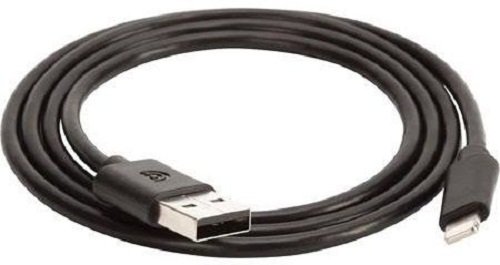
Image: The Griffin GC36670 3-Feet USB to Lightning Cable, black in color, featuring a USB-A connector on one end and a Lightning connector on the other.
Produktegenskaber
- Made for iPhone-certified: Sikrer kompatibilitet og pålidelig ydeevne med Apple-enheder.
- Charge, sync, or transfer data: Supports multiple functions for your iOS device.
- Alsidige strømmuligheder: Can be used with a USB wall charger or a USB car charger.
- Standard USB Type-A connector: Plugs into any open USB port on a Mac or PC.
- 3-foot (0.91 meter) length: Provides adequate reach for various charging and syncing scenarios.
Opsætning
To set up your Griffin GC36670 USB to Lightning Cable, follow these steps:
- Identificer forbindelser: Locate the USB Type-A connector (larger, rectangular end) and the Lightning connector (smaller, reversible end).
- Tilslut til strømkilde eller computer:
- For charging: Insert the USB Type-A connector into a compatible USB wall adapter, USB car charger, or a powered USB port on a computer.
- For syncing/data transfer: Insert the USB Type-A connector into an available USB port on your Mac or PC.
- Opret forbindelse til iOS-enhed: Insert the Lightning connector into the charging/data port of your compatible Apple iOS device (e.g., iPhone 5, iPad 4th Generation, iPod Nano 7th Generation, iPod Touch 5th Generation, iPad Mini). Ensure a firm connection.
- Bekræft forbindelsen: Your device should indicate that it is charging or connected to the computer.
Betjeningsvejledning
The Griffin GC36670 cable is designed for straightforward operation.
Opladning af din enhed
- Connect the USB Type-A end of the cable to a USB power source (wall adapter, car charger, or computer USB port).
- Connect the Lightning end of the cable to your Apple iOS device.
- The device's battery indicator will show a charging symbol. Charging times may vary depending on the power source and device model.
Syncing and Data Transfer
- Connect the USB Type-A end of the cable to an available USB port on your Mac or PC.
- Connect the Lightning end of the cable to your Apple iOS device.
- Your computer should recognize the connected device. You can then use iTunes or Finder (macOS Catalina and later) to synchronize data, transfer files, or perform backups.
Opretholdelse
Proper maintenance ensures the longevity and optimal performance of your cable.
- Opbevaring: Opbevar kablet et køligt og tørt sted, væk fra direkte sollys og ekstreme temperaturer. Undgå at vikle kablet stramt op eller bøje det i skarpe vinkler, da dette kan beskadige de indvendige ledninger.
- Rensning: Disconnect the cable from all devices and power sources before cleaning. Use a soft, dry, lint-free cloth to wipe the cable and connectors. Do not use liquid cleaners or solvents.
- Håndtering: Tag altid fat i stikket, når du tilslutter eller frakobler kablet, i stedet for at trække i selve kablet. Dette forhindrer belastning af forbindelsespunkterne.
- Inspektion: Undersøg kablet regelmæssigt for tegn på slid, flosning eller beskadigelse af isolering eller stik. Stop brugen, hvis der observeres skader.
Fejlfinding
If you encounter issues with your Griffin GC36670 cable, refer to the following common troubleshooting steps:
| Problem | Mulig årsag | Løsning |
|---|---|---|
| Enheden oplader ikke. | Loose connection, faulty power source, or damaged cable. |
|
| Device not syncing with computer. | Loose connection, computer port issue, or software conflict. |
|
| Meddelelsen "Tilbehør understøttes ikke". | Dust/debris in device port, or rare compatibility issue. |
|
Specifikationer
- Modelnummer: GC36670
- Mærke: Griffin
- Kabeltype: USB til Lightning
- Længde: 3 fod (cirka 0.91 meter)
- Forbindelser: USB Type-A (Male) to Lightning (Male)
- Farve: Sort
- Kompatibilitet: Apple iPhone 5, iPad 4th Generation, iPod Nano 7th Generation, iPod Touch 5th Generation, iPad Mini.
- Speciel funktion: Tangle Fri
- Produktdimensioner: 5.4 x 3.9 x 0.8 tommer (emballage)
- Varens vægt: 0.353 ounce
Garanti og support
For information regarding warranty coverage and customer support for your Griffin product, please refer to the official Griffin webhjemmeside eller kontakt deres kundeservice direkte.
Griffin Official Webwebsted: www.griffintechnology.com
Bemærk: Garantibetingelserne kan variere afhængigt af region og forhandler. Gem venligst din købsbevis til garantikrav.