
Indledning
The TP-Link Archer C7 AC1750 is a high-performance wireless router designed to provide fast and reliable Wi-Fi connectivity for your home or office network. Featuring dual-band technology and Gigabit Ethernet ports, it supports the 802.11ac Wi-Fi standard, offering a combined bandwidth of up to 1750 Mbps (450 Mbps on 2.4 GHz and 1300 Mbps on 5 GHz). This manual provides essential information for setting up, operating, maintaining, and troubleshooting your Archer C7 router.
Pakkens indhold
- TP-Link Archer C7 AC1750 Wireless Dual Band Gigabit Router
- Strømadapter
- Ethernet kabel
- Hurtig installationsvejledning

Image: The retail packaging box for the TP-Link Archer C7 AC1750 router, showing the product features and design.
Opsætning
1. Fysisk forbindelse
- Tænd: Connect the provided power adapter to the router's power port and plug it into a power outlet. Press the Power On/Off button if necessary.
- Tilslut til modemet: Connect your modem's Ethernet cable to the blue WAN port on the back of the Archer C7 router.
- Tilslut enheder (valgfrit): For wired connections, connect your computers or other network devices to the yellow LAN ports (Ethernet 1-4) using Ethernet cables.
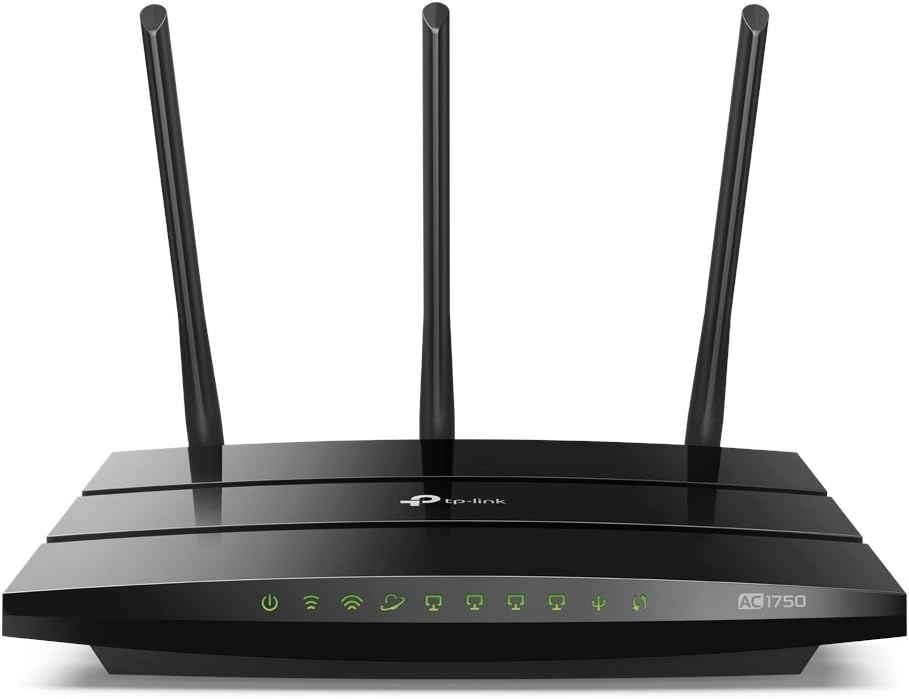
Image: The rear panel of the Archer C7 router, highlighting the power input, USB ports, blue WAN port, and four yellow LAN ports.
2. Indledende konfiguration
Du kan konfigurere din router ved hjælp af en web browseren eller TP-Link Tether-appen.
- Ved hjælp af en Web Browser:
- Connect your computer to the router either wirelessly (using the default Wi-Fi name and password found on the router's label) or via an Ethernet cable to a LAN port.
- Åbn a web browser og type
http://tplinkwifi.netorhttp://192.168.0.1ind i adresselinjen. - Log ind med standardbrugernavnet og adgangskoden (normalt
adminfor begge, eller som angivet på routerens etiket). - Følg hurtigopsætningsguiden på skærmen for at konfigurere din internetforbindelse og dine trådløse indstillinger.
- Brug af TP-Link Tether-appen:
- Download TP-Link Tether-appen fra App Store eller Google Play.
- Tilslut din mobilenhed til routerens standard Wi-Fi-netværk.
- Open the Tether app and follow the instructions to set up your router.
Betjening af routeren
Dual-Band Wi-Fi
The Archer C7 operates on two separate Wi-Fi bands: 2.4 GHz and 5 GHz. This allows for greater flexibility and performance.
- 2.4 GHz bånd: Ideal for basic internet use like browsing and email, and for devices that are further away from the router.
- 5 GHz bånd: Provides faster speeds and less interference, suitable for bandwidth-intensive activities such as online gaming and HD video streaming.
Gæstenetværksadgang
The router supports creating a separate guest network, providing secure Wi-Fi access for visitors without sharing your main network's password or resources. This enhances network security and privacy.
IP-baseret båndbreddekontrol
Utilize the IP-based Bandwidth Control feature to manage the bandwidth allocated to individual devices connected to your network. This helps ensure fair bandwidth distribution and prevents a single device from monopolizing the connection.
USB Ports for Sharing
The dual USB ports allow you to share files, media, and even a printer across your network. You can access shared content locally or remotely via an FTP server, turning your router into a versatile media and file server.

Image: The front panel of the Archer C7 router, displaying the LED indicators for power, internet, 2.4 GHz Wi-Fi, 5 GHz Wi-Fi, LAN activity, and USB activity.
Opretholdelse
- Firmwareopdateringer: Tjek TP-Link regelmæssigt website for firmware updates. Updating your router's firmware can improve performance, add new features, and enhance security. Follow the instructions provided with the firmware update carefully.
- Regelmæssige genstarter: Periodically restarting your router can help clear its memory and resolve minor connectivity issues, ensuring optimal performance.
- Fysisk rengøring: Keep the router clean and free from dust to prevent overheating. Ensure proper ventilation around the device.
Fejlfinding
- Ingen internetadgang:
- Check all cable connections, especially the Ethernet cable from your modem to the router's WAN port.
- Kontroller, at dit modem fungerer korrekt.
- Genstart både dit modem og din router.
- Langsom Wi-Fi-hastighed:
- Ensure your devices are connected to the appropriate Wi-Fi band (5 GHz for faster speeds).
- Reducer interferens ved at flytte routeren væk fra andre elektroniske enheder.
- Se efter firmwareopdateringer.
- Consider using IP-based Bandwidth Control to prioritize certain devices.
- Forgotten Wi-Fi Password or Router Login Password:
- Locate the label on the bottom of your router for default Wi-Fi credentials.
- If you changed the password and forgot it, you may need to perform a factory reset. Use a pin to press and hold the Reset button on the back of the router for about 10 seconds until the LEDs flash. This will restore the router to its factory default settings.
Specifikationer
| Feature | Detalje |
|---|---|
| Modelnummer | ArcherC7 |
| Wi-Fi-standard | 802.11ac |
| Frekvensbåndsklasse | Dobbeltbånd (2.4 GHz og 5 GHz) |
| Samlet tilgængelig båndbredde | 1750 Mbps (450 Mbps at 2.4GHz, 1300 Mbps at 5GHz) |
| Ethernet-porte | 4 Gigabit LAN Ports, 1 Gigabit WAN Port |
| USB-porte | Dual USB Ports (for file, media, and printer sharing) |
| Dimensioner | 9.57 x 6.32 x 1.28 tommer |
| Varens vægt | 1.12 pund |
| Inkluderede komponenter | Router, Power Adapter, Ethernet Cable |
Garanti
TP-Link-produkter leveres typisk med en standard producentgaranti. Se venligst garantikortet, der er inkluderet i produktemballagen, eller besøg den officielle TP-Link-webside. website for detailed warranty terms and conditions specific to your region and product model. Keep your purchase receipt as proof of purchase for warranty claims.
Støtte
For further assistance, technical support, or to download the latest drivers and firmware, please visit the official TP-Link support website. You can also find FAQs and community forums for common issues and solutions.
- TP-Link support Webwebsted: https://www.tp-link.com/support
- TP-Link Tether-app: Available on App Store and Google Play for easy management.