
Indledning
This manual provides detailed instructions for the setup, operation, and maintenance of your iBall C 8.0 Web Camera. Please read this manual thoroughly before using the product to ensure optimal performance and longevity.
Pakkens indhold
- iBall C 8.0 Web Camera with integrated USB cable
- Driver-cd (hvis relevant)
Note: Contents may vary slightly based on region or package version.
Funktioner
The iBall C 8.0 Web Camera is designed for high-quality video communication and still image capture. Key features include:
- Interpolated 8.0 Mega Pixel Still Image Resolution
- Interpolated 4.0 Mega Pixel Video Resolution
- High quality 5G wide angle lens
- 6 LEDs for night vision with brightness controller
- Snapshot button for still image capture
- Built-in high sensitive microphone
- Built-in 4 Photo frames and 7 special effects
- 4X digital zoom
- Multi-utility camera base for use on Monitors, LCDs and Laptops
- USB 2.0 interface (backward compatible with USB 1.1)
Opsætning
1. Hardwareforbindelse
- Placer Webcam: Place the iBall C 8.0 Web Camera on your monitor, laptop screen, or a flat surface using its multi-utility base. Ensure it is stable and facing the desired direction.
- Tilslut til computer: Tilslut USB-stikket på webcam into an available USB 2.0 port on your computer. The operating system should detect the new hardware.
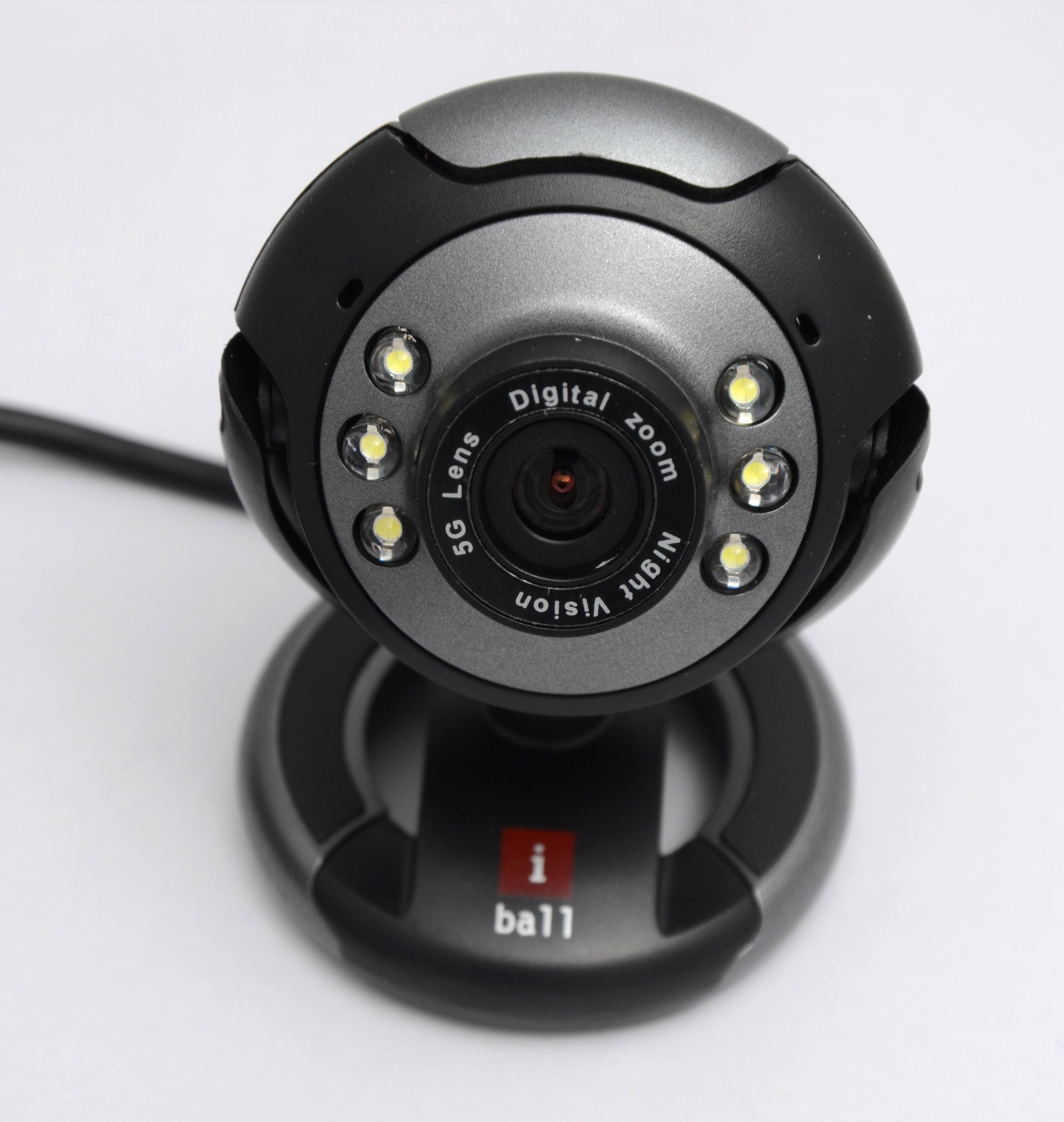
Image: The iBall C 8.0 Web Camera with its integrated USB cable. The camera features a multi-utility base and a lens surrounded by 6 LEDs. The USB connector is visible, ready for connection to a computer.
2. Driver installation
For Windows 2000 / XP / Vista / 7, drivers are typically required. The product includes a driver for Windows with photo frames and special effects.
- Indsæt driver-cd: If provided, insert the driver CD into your computer's CD/DVD drive.
- Kør opsætning: Follow the on-screen instructions to install the webcam drivers and bundled software. If an auto-run feature does not start, navigate to the CD drive in "My Computer" and run the setup executable (e.g., setup.exe).
- Genstart computeren: After installation, it is recommended to restart your computer to ensure all drivers are properly loaded.
Note: For newer operating systems (Windows 8/10/11), drivers may install automatically upon connection. If not, please refer to the iBall support webwebsted for de nyeste drivere.
Betjeningsvejledning
Ved hjælp af Webcam
- Start applikation: Open a video conferencing application (e.g., Skype, Zoom, Google Meet) or a camera application on your computer. Select the iBall C 8.0 Web Camera as your video input device.
- Juster fokus: De webcam has a focus range of 5 cm to infinity. Adjust the lens manually if your image appears blurry.
- Night Vision (LEDs): The 6 built-in LEDs provide illumination in low-light conditions. Use the brightness controller on the cable to adjust the intensity of these LEDs.
- Snapshot knap: Press the dedicated snapshot button on the webcam to capture still images instantly. The image will be saved to your default pictures folder or the location specified in the bundled software.
- Digital zoom: Utilize the 4X Digital Zoom feature through the bundled software or your video application settings to magnify your image.
- Photo Frames & Special Effects: Access the 4 built-in photo frames and 7 special effects via the bundled software to enhance your video calls or captured images.
- Indbygget mikrofon: The high-sensitive microphone will automatically pick up audio. Ensure it is selected as the audio input device in your application settings.
Opretholdelse
- Rensning: Brug en blød, tør klud til at rengøre kameralinsen og huset. Undgå at bruge flydende rengøringsmidler eller slibende materialer.
- Opbevaring: Når den ikke er i brug, skal du opbevare den webOpbevar kameraet på et rent, tørt sted væk fra direkte sollys og ekstreme temperaturer.
- Kabelpleje: Do not pull the cable forcefully or bend it sharply to prevent damage.
Fejlfinding
- Problem: WebKameraet blev ikke registreret af computeren.
- Løsning:
- Sørg for, at USB-kablet er korrekt tilsluttet en fungerende USB-port.
- Prøv en anden USB-port.
- Genstart din computer.
- Verify that drivers are correctly installed (refer to "Driver Installation" section).
- Tjek Enhedshåndtering (Windows) for at se, om webcam is listed without errors.
- Problem: Billedet er sløret eller ude af fokus.
- Løsning:
- Manually adjust the focus ring around the lens until the image is clear.
- Sørg for, at linsen er ren og fri for pletter.
- Problem: No audio from the webcam mikrofon.
- Løsning:
- Check your application's audio settings and ensure the iBall C 8.0 microphone is selected as the input device.
- Bekræft mikrofonens privatlivsindstillinger i dit operativsystem.
- Problem: Night vision LEDs are not working or too dim/bright.
- Løsning:
- Adjust the brightness controller located on the webcam's cable.
- Sørg for webcam is receiving sufficient power from the USB port.
Specifikationer
| Feature | Detalje |
|---|---|
| Billedsensor | High quality 1/4 CMOS sensor |
| Effektive pixel | 480K pixels (Interpolated 8M pixels still image & 4M pixels video) |
| Video opløsning | Max. up to 2560 x 1920 pixels (Interpolated) |
| Billedopløsning | Max. up to 3200 x 2400 pixels (Interpolated) |
| Billedhastigheder | 50 billeder i sekundet |
| Farvedybde | 24-Bit True Colour |
| Interface | USB 2.0, backward compatible to USB 1.1 |
| Fokus | 5 cm to Infinity |
| Mikrofon | Built-in high sensitive microphone |
| Snapshot knap | Built-in snapshot button |
| Nattesyn | 6 LEDs for night vision, with brightness controller |
| Digital Zoom | 4X digital zoom |
| Video effekter | 4 photo frames and 7 special effects |
| OS kompatibilitet | Windows 2000 / XP / Vista & 7 |
| Varens vægt | 240 g |
| Linsetype | Wide Angle (5G) |
| Billedstabilisering | Digital |
Garanti og support
The iBall C 8.0 Web Kameraet leveres med en 2 års garanti fra købsdatoen. Gem venligst din købskvittering i tilfælde af garantikrav.
For technical support, driver updates, or further assistance, please visit the official iBall support website or contact their customer service. Contact information can typically be found on the iBall webwebsted eller produktemballage.