
Indledning
The MANHATTAN 4-Port KVM Switch (Model 151269) allows you to control up to four USB-enabled multimedia computers using a single USB keyboard, USB mouse, and VGA monitor. This compact KVM switch also features audio and microphone switching functionality, enabling you to share a single set of speakers and a microphone across all connected computers. It is designed for both SOHO (Small Office/Home Office) and general office desktop multimedia applications, providing an efficient solution for managing multiple systems.
The device includes four sets of detachable USB KVM combo cables and four sets of audio/mic cables, simplifying the connection process. It supports independent or simultaneous switching of PC channels and audio/microphone channels, offering flexibility in your setup.
Funktioner
- Controls up to four computers from a single USB keyboard, USB mouse, and VGA monitor.
- Integrated audio and microphone switching for shared speakers and microphone.
- Supports USB interface for multiplatform compatibility (PC, Macintosh G3/G4, iMac).
- User-programmable simultaneous/independent PC and audio/mic switching.
- Includes four 1.5m detachable KVM connection cables and audio/mic cables.
- Compact design for desktop use.
- Push-button and hotkey switching options.
Pakkens indhold
Kontroller, at alle varer er til stede og i god stand, når du åbner pakken:
- MANHATTAN 4-Port KVM Switch (Model 151269)
- Four (4) KVM combo cables (USB and VGA)
- Four (4) Audio/Microphone cables
- Brugervejledning (dette dokument)
Opsætningsinstruktioner
Follow these steps to set up your MANHATTAN 4-Port KVM Switch:
1. Identify Ports
Familiarize yourself with the ports on the KVM switch. The front panel typically contains console ports for your keyboard, mouse, speakers, and microphone. The rear and side panels contain the PC connection ports (VGA, USB, Audio, Mic) for each computer.
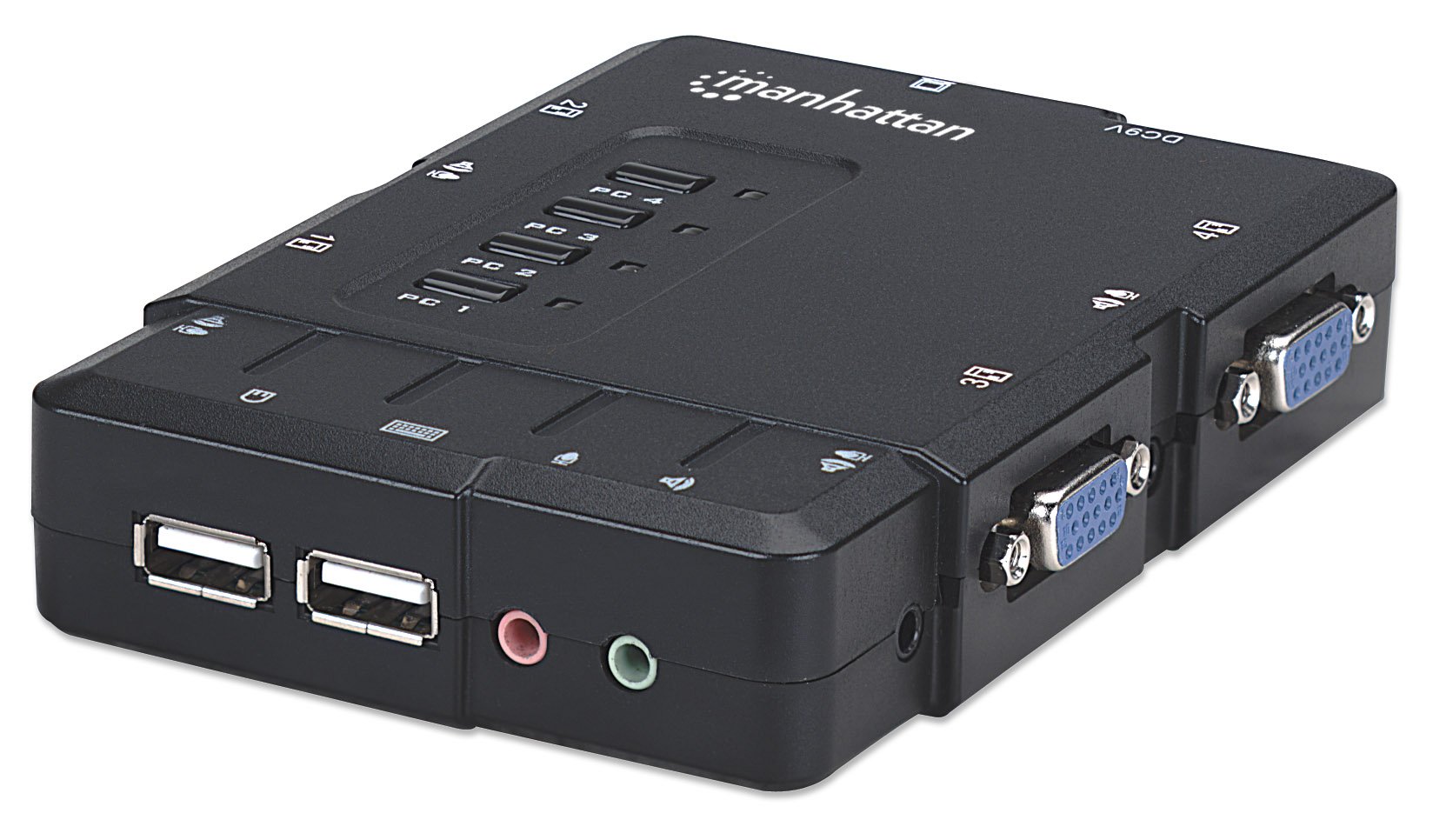
Billede: Top-down view of the MANHATTAN 4-Port KVM Switch, highlighting the front console ports for USB keyboard/mouse and audio/mic, along with the PC selection buttons (PC 1-4).
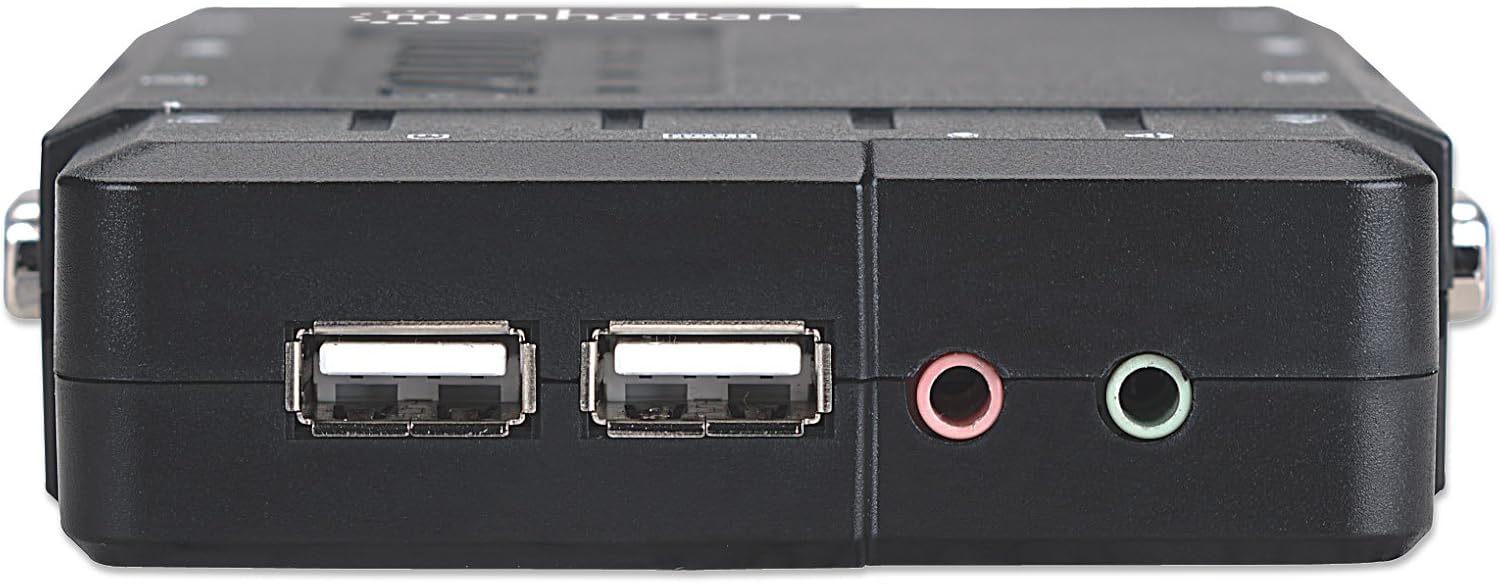
Billede: Forside view of the KVM switch, displaying the two USB ports for console keyboard and mouse, and the 3.5mm jacks for console microphone (pink) and speakers (green).
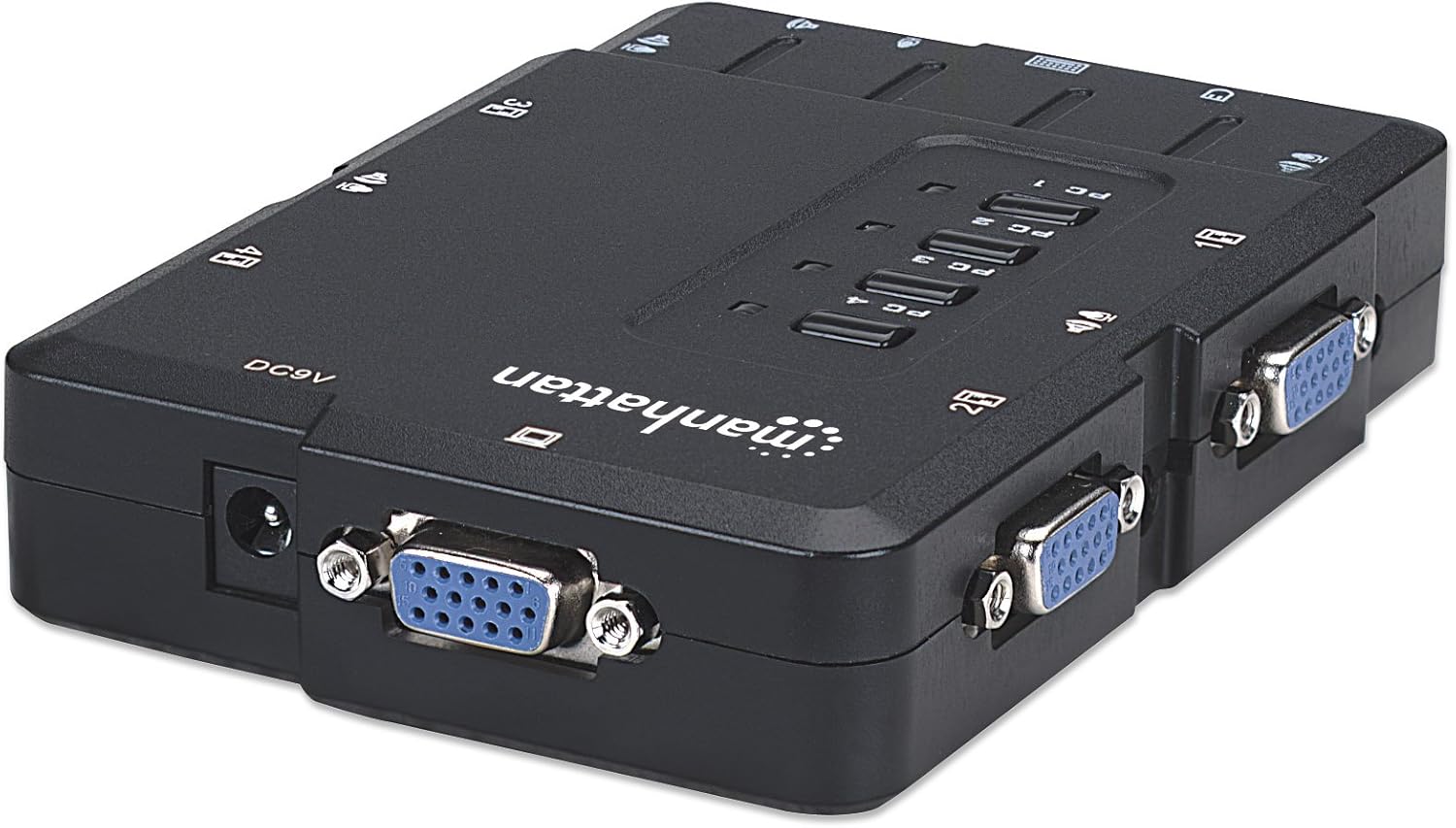
Billede: Bagside view of the KVM switch, showing the VGA input ports for connecting computers and the DC9V power input port.
2. Connect Console Devices
- Connect your USB keyboard to one of the USB ports on the front panel of the KVM switch.
- Connect your USB mouse to the other USB port on the front panel.
- Connect your VGA monitor to the VGA output port on the KVM switch.
- If using, connect your speakers to the green audio output jack and your microphone to the pink microphone input jack on the front panel.
3. Connect Computers
For each computer you wish to connect (up to four):
- Sørg for, at computeren er slukket.
- Use one of the provided KVM combo cables to connect the computer's VGA output to a corresponding VGA input port on the KVM switch (e.g., PC 1 VGA).
- Connect the USB connector from the same KVM combo cable to an available USB port on the computer.
- If using audio/microphone, connect the provided audio cable from the computer's audio output to the corresponding audio input on the KVM switch, and the microphone cable from the computer's microphone input to the corresponding microphone input on the KVM switch.
- Repeat for all computers.
Note: The KVM switch does not require an external power adapter for basic operation, as it draws power from the connected computers via USB. However, a 9V DC power input is available if additional power is needed for stability, especially with high-power USB devices or long cable runs. An optional 9V AC adapter can be purchased separately.
4. Tænd
Once all connections are secure, power on your computers. The KVM switch will automatically detect the active computer or default to PC 1.
Betjeningsvejledning
The MANHATTAN 4-Port KVM Switch offers two methods for switching between connected computers:
1. Trykknapper på frontpanelet
Press the corresponding "PC 1", "PC 2", "PC 3", or "PC 4" button on the front panel of the KVM switch to select the desired computer. An LED indicator will illuminate to show which PC is currently active.
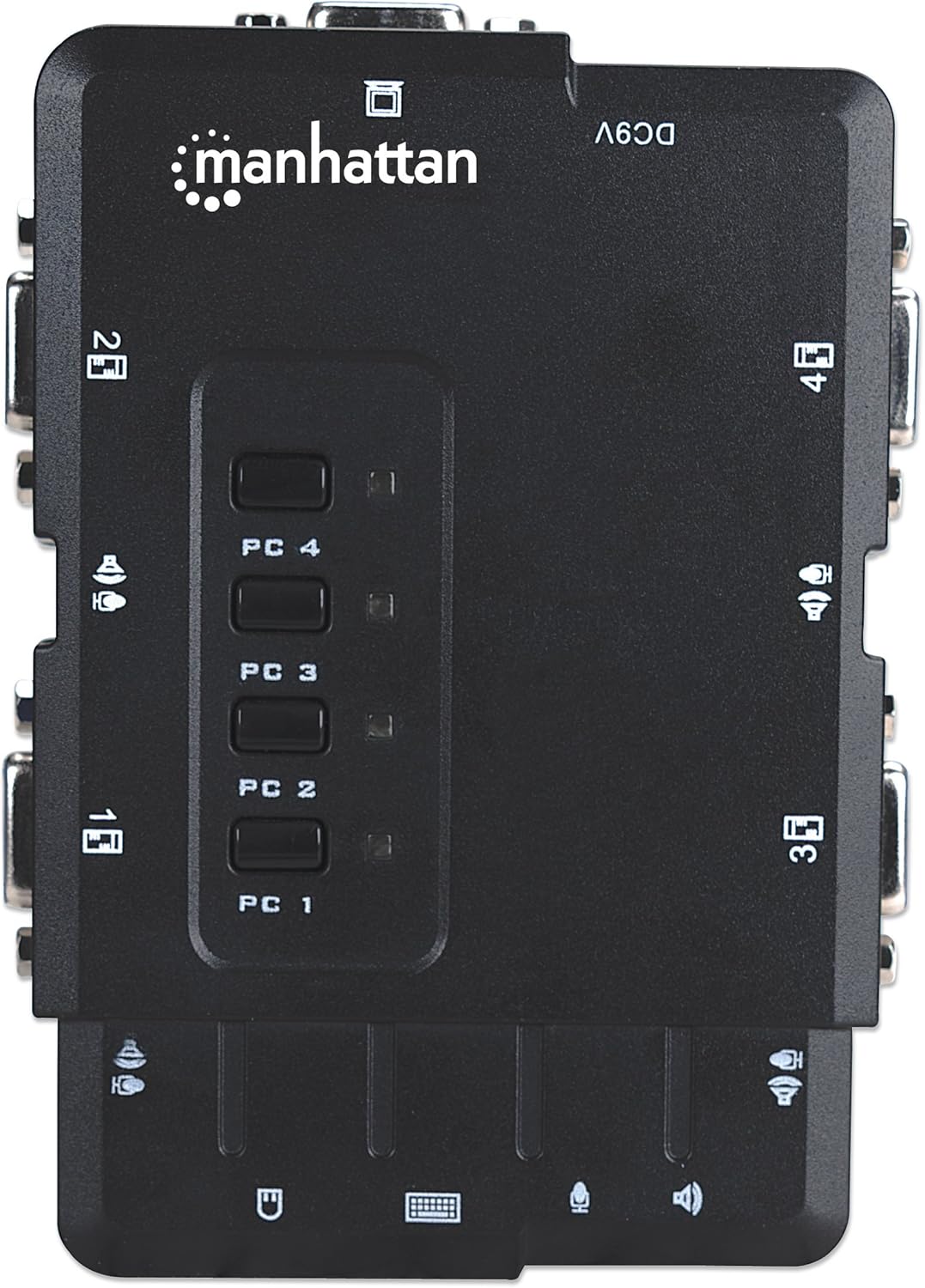
Billede: Top view of the KVM switch, clearly showing the four push buttons labeled PC 1 through PC 4 for direct computer selection.
2. Keyboard Hotkeys
You can switch between computers using keyboard hotkey commands. The default hotkey sequence is:
- Tryk på Scroll Lock tast to gange hurtigt efter hinanden.
- Then, press the number key corresponding to the desired PC (e.g., 1 for PC 1, 2 for PC 2, etc.).
Exampdet: To switch to PC 3, press Scroll Lock, Scroll Lock, så 3.
Some KVM switches also support switching using the Left CTRL key twice, followed by the PC number. Refer to the on-screen display or manufacturer's website for advanced hotkey configurations if the default does not work or if you wish to customize.
Audio and Microphone Switching
The KVM switch allows for independent or simultaneous switching of audio/microphone channels. By default, audio and microphone typically switch along with the selected PC. Consult the manufacturer's website or advanced settings for options to decouple audio switching from PC switching if desired.
Opretholdelse
For at sikre optimal ydeevne og levetid for din KVM-switch:
- Opbevar enheden et rent, tørt sted, væk fra direkte sollys, overdreven varme og fugt.
- Undgå at blokere ventilationsåbningerne på enheden.
- Rengør ydersiden med en blød, tør klud. Brug ikke flydende rengøringsmidler eller rengøringsmidler på sprayform.
- Ensure all cables are securely connected. Loose connections can cause signal loss or intermittent issues.
- Forsøg ikke at åbne eller reparere enheden selv. Kontakt kvalificeret servicepersonale.
Fejlfinding
If you encounter issues with your KVM switch, try the following troubleshooting steps:
- Ingen skærm eller flimrende skærm:
- Sørg for, at alle VGA-kabler er korrekt tilsluttet til både KVM-switchen og computerne/skærmen.
- Try restarting the KVM switch by disconnecting and reconnecting the USB cables from the computers, or by connecting an optional 9V power adapter if available.
- Kontroller, at din skærm er indstillet til den korrekte inputkilde.
- Test with different VGA cables if possible.
- Tastatur eller mus reagerer ikke:
- Ensure the USB cables from the KVM switch are securely connected to the computers.
- Check that your keyboard and mouse are connected to the correct console USB ports on the KVM switch.
- Some specialized keyboards (e.g., gaming keyboards with advanced features) may not be fully compatible with KVM switches. Try a standard USB keyboard and mouse to isolate the issue.
- Restart the KVM switch and the affected computer.
- Ingen lyd- eller mikrofonfunktion:
- Verify that all audio and microphone cables are correctly connected between the KVM switch and the computers/speakers/microphone.
- Check the audio settings on each computer to ensure the correct output/input device is selected (e.g., "USB Audio Device" or similar).
- Sørg for, at lydstyrken på computeren eller i højttalerne ikke er slået fra.
- Some operating systems (e.g., certain Linux distributions) might require specific driver configurations for audio through KVM.
- Hotkeys Not Working:
- Ensure you are pressing the hotkey sequence correctly and quickly (e.g., Scroll Lock, Scroll Lock, then PC number).
- Confirm that the keyboard is fully recognized by the KVM switch.
- Try using the front panel push buttons to switch PCs as an alternative.
Specifikationer
| Feature | Beskrivelse |
|---|---|
| Model | 151269 |
| Mærke | MANHATTAN |
| Switch Type | KVM Switch with Audio and Microphone Functionality |
| Antal havne | 4 |
| Konsolforbindelser | 1 x VGA, 2 x USB (Type-A), 1 x 3.5mm Audio Out, 1 x 3.5mm Mic In |
| PC Connections (per PC) | 1 x VGA, 1 x USB (Type-B), 1 x 3.5mm Audio In, 1 x 3.5mm Mic Out |
| Kontrolmetode | Trykknap, genvejstaster |
| Forbindelsesprotokol | USB |
| Materiale | Polycarbonat |
| Farve | Sort |
| Varedimensioner (L x B x H) | 8.46 x 7.52 x 3.74 tommer (21.5 x 19.1 x 9.5 cm) |
| Varens vægt | 2 pund (0.91 kg) |
| Magt | USB-powered (optional 9V DC input for external power) |
| Inkluderede komponenter | KVM Switch, 4 KVM combo cables, 4 Audio/Mic cables |
Garanti
MANHATTAN products are designed for durability and are backed by a manufacturer's warranty. For specific warranty terms, duration, and claim procedures, please refer to the official MANHATTAN website or the warranty card included with your product. Keep your proof of purchase for warranty service.
Støtte
For technical assistance, product updates, or additional information, please visit the official MANHATTAN website. You can typically find FAQs, driver downloads, and contact information for customer support there.
MANHATTAN Official Webwebsted: www.manhattanproducts.com