
1. Produktet er slutview
The HP 41B PCIe 4GB FC Single Port HBA (Host Bus Adapter) is designed to provide high-performance Fibre Channel connectivity for servers and storage systems. This adapter facilitates reliable data transfer between servers and Fibre Channel storage arrays, supporting critical enterprise applications.
It features a single LC port and utilizes the PCI Express 2.0 interface, delivering a data transfer rate of 4Gbps. This manual provides instructions for the proper installation, operation, and maintenance of your HP 41B HBA.
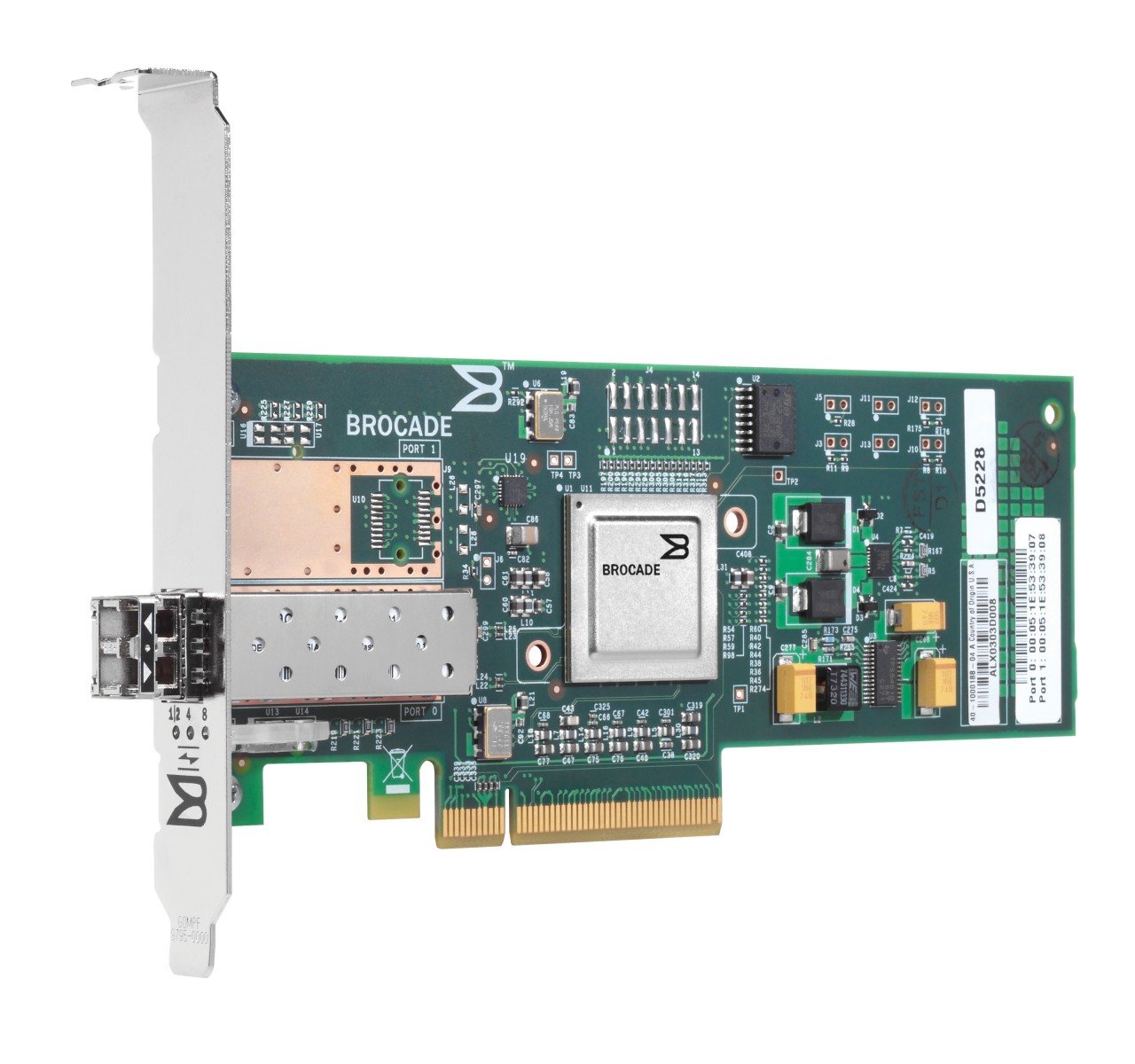
Billede 1.1: Forside view of the HP 41B PCIe 4GB FC Single Port HBA. This image displays the physical card with its single LC Fibre Channel port and PCIe connector.
2. Sikkerhedsoplysninger
Please read all safety instructions carefully before installing or operating the HP 41B HBA. Failure to follow these instructions may result in injury, damage to the product, or damage to other components.
- Forholdsregler for elektrostatisk afladning (ESD): Always wear an ESD wrist strap and work on an ESD-safe surface when handling the HBA. ESD can damage sensitive electronic components.
- Sluk: Ensure the server or workstation is completely powered off and disconnected from the power source before installing or removing the HBA.
- Korrekt håndtering: Hold the HBA by its edges. Avoid touching the gold connector pins or any components on the circuit board.
- Ventilation: Ensure adequate airflow within the server chassis to prevent overheating.
- Kvalificeret personale: Installation and maintenance should only be performed by qualified service personnel.
3. Pakkens indhold
Bekræft, at alle varer er til stede i pakken. Hvis der mangler eller er beskadigede varer, skal du straks kontakte din forhandler.
- HP 41B PCIe 4GB FC Single Port HBA (Model AP767A)
- Lav-profile beslag (hvis relevant, kan være forudinstalleret eller inkluderet separat)
- Documentation (e.g., Quick Start Guide, Driver CD/URL - Note: Drivers are typically downloaded from the manufacturer's webwebsted)
4. Opsætning og installation
Follow these steps to install the HP 41B HBA into your server or workstation.
4.1. Hardwareinstallation
- Forbered systemet: Power down the server and disconnect all power cables. Open the server chassis according to the manufacturer's instructions.
- ESD beskyttelse: Put on an ESD wrist strap and attach it to a grounded metal surface on the server chassis.
- Select a PCIe Slot: Locate an available PCI Express 2.0 (or higher) slot on the motherboard. Ensure it is compatible with the HBA's form factor.
- Fjern dækslet til slotet: Remove the corresponding expansion slot cover from the server chassis.
- Install the HBA: Carefully align the HBA with the PCIe slot. Apply even pressure to both ends of the card until it is firmly seated in the slot. Secure the HBA with the retention clip or screw provided by the server chassis.
- Luk chassis: Luk serverkabinettet, og tilslut alle strømkabler igen.
4.2. Driver installation
After hardware installation, you must install the appropriate drivers for your operating system.
- Tænd: Power on the server. The operating system may detect new hardware.
- Download drivere: Besøg den officielle HP-support webwebsted (www.hp.com/support) and search for drivers for "HP 41B PCIe 4GB FC Single Port HBA" or "Model AP767A". Download the latest drivers compatible with your operating system.
- Installer drivere: Follow the on-screen instructions to install the downloaded drivers. This may require a system reboot.
- Bekræft installationen: After rebooting, check your operating system's Device Manager (Windows) or equivalent utility (Linux/Unix) to confirm that the HBA is recognized and functioning correctly.
5. Operating the HBA
Once the HBA is installed and drivers are loaded, you can connect it to your Fibre Channel storage network.
- Connect Fibre Channel Cable: Connect a compatible Fibre Channel cable (LC-LC) from the HBA's port to your Fibre Channel switch or directly to a storage device.
- Verify Link Status: Check the LED indicators on the HBA (if present) and on the Fibre Channel switch/storage device to confirm a successful link. Refer to the HBA's specific LED guide for status interpretations.
- Configure Storage: Configure your storage array and server operating system to recognize and utilize the connected Fibre Channel storage. This typically involves zoning on the Fibre Channel switch and LUN mapping on the storage array. Consult your storage system documentation for detailed configuration steps.
- Test forbindelse: Perform tests to ensure data can be read from and written to the Fibre Channel storage.
6. Vedligeholdelse
Regular maintenance helps ensure the longevity and optimal performance of your HP 41B HBA.
- Hold rent: Periodically inspect the HBA and server interior for dust accumulation. Use compressed air to gently clean the card and surrounding areas. Ensure the server is powered off and unplugged before cleaning.
- Firmwareopdateringer: Tjek HP-supporten website regularly for firmware updates for your HBA. Firmware updates can improve performance, add features, or resolve issues. Follow HP's instructions carefully when performing firmware updates.
- Driver opdateringer: Keep your HBA drivers updated to ensure compatibility and optimal performance with your operating system and storage environment.
- Miljøkontrol: Ensure the server operates within recommended temperature and humidity ranges to prevent component stress.
7. Fejlfinding
This section provides solutions to common issues you might encounter with your HP 41B HBA.
- HBA ikke detekteret:
- Ensure the HBA is fully seated in the PCIe slot.
- Verify that the PCIe slot is functional by testing with another known-good card if possible.
- Check server BIOS/UEFI settings to ensure PCIe slots are enabled.
- Ensure correct drivers are installed for your operating system.
- No Link Light / Connectivity Issues:
- Check Fibre Channel cable connections at both the HBA and the switch/storage.
- Ensure the Fibre Channel cable is not damaged. Try a different cable.
- Verify that the Fibre Channel switch port is enabled and properly configured (e.g., zoning).
- Check HBA firmware and driver versions. Update if necessary.
- Dårlig ydeevne:
- Ensure the HBA is installed in a PCIe slot that provides sufficient bandwidth (e.g., PCIe 2.0 x4 or higher).
- Verify that the Fibre Channel network is operating at 4Gbps (or negotiated speed).
- Check for updated drivers and firmware.
- Monitor server resource utilization (CPU, memory) to identify bottlenecks.
If issues persist, consult the HP support website or contact HP technical support.
8. Specifikationer
Key technical specifications for the HP 41B PCIe 4GB FC Single Port HBA (Model AP767A):
| Feature | Specifikation |
|---|---|
| Mærke | HEWLETT PACKARD |
| Modelnummer | AP767A |
| Hardware-interface | Fiberkanal |
| Dataoverførselshastighed | 4 Gbps |
| Porttype | 1 x LC |
| PCI Express-version | 2.0 |
| Varens vægt | 2730 gram |
| UPC/GTIN | 884962013434 |
9. Garanti og support
For detailed warranty information, please refer to the warranty statement included with your product or visit the official HP website. HP provides various support resources to assist you with your product.
- Online support: Besøg www.hp.com/support for drivers, documentation, troubleshooting guides, and knowledge base articles.
- Teknisk support: Contact HP technical support for assistance with product issues. Contact information can be found on the HP support webwebsted.
- Produktregistrering: Register your product online to receive updates and support notifications.
